
How I Created a Game-Changing AI-driven Productivity System: Part 2
My journey from analog to digital and AI-driven productivity system. This part talks about the technology choices.

“It’s not the tools. It’s the system that makes a difference.” - David Allen

If you are new to my publication or in case you missed it, here is a link to Part 1 of this article that I published last month.

In Part 1, I discussed the precursor to my productivity workflow and the reason behind building this workflow, and how it has evolved over the past few years.
In this part, I will be taking the story further by sharing my experience of the technology undercurrents of this workflow. We will see the products/ apps I explored, the reason behind finalizing the apps that I use today, and my experience with these apps so far.
To recap, my productivity system has three main components to my productivity workflow,
1. The Collector with automation
2. The Controller has AI-setup and
3. The Coordinator integrated with an AI (Artificial Intelligence) algorithm.
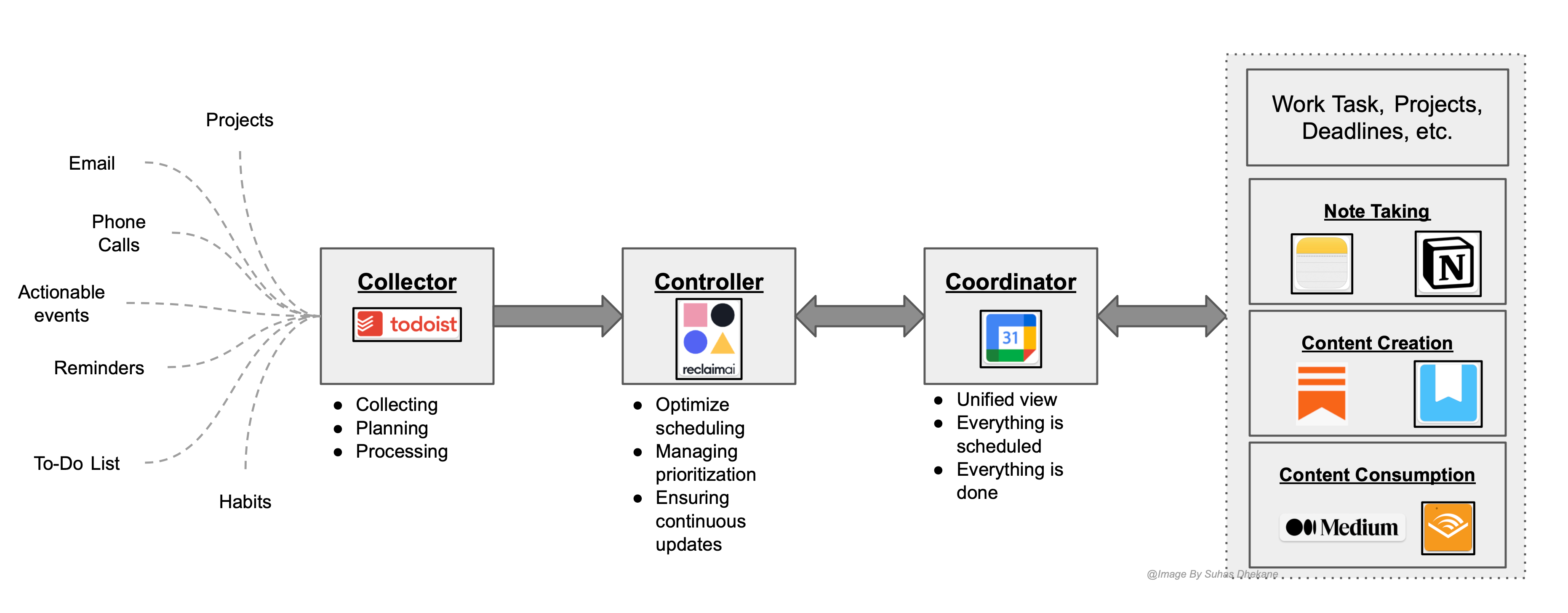
Above the diagram is an updated version from Part 1 with more details. Let’s get deeper into each of these components and discuss the technology choices and the reason behind them.
1. The Collector: This is the main interface for my life events, whether they are work-related or personal life-related events. The main purpose of this component, as the name suggests, is doing collect anything that I want to be reminded of or tasks or actions that must take in the future. I am sure many of us have read productivity books or seen videos on productivity. For example, a well-known book “Getting Things Done” by ‘David Allen 1 (also famously known as GTD), or another example, “How to make smart notes” by Sönke Ahrens2. It becomes apparent that there should be a basic, fast, and efficient way of doing the collection of things that can be planned or processed later. That is the key factor based on my reading & research of the renowned authors & content creators who have been able to successfully build a productivity system. David Allen refers to it as an ‘in-tray’ or ‘inbox’ and Sönke Ahrens refers to it as a ‘slip-box’ (or Zettelkasten in the German language) and I refer to it as ‘the collector’. No matter what it is called– the objective is to simplify making notes of things that are significant for you in the future, which in most cases is either an hour, a day, a week, or month(s) from now. The key is simplification and hence nothing can beat a simple notebook, diary, and pen. I did start with this kind of analog system and I won't lie, but I still use it for quickly noting things. However, for the larger percentage of the time, which is around 95% of my collection throughout the day will be in an app called ‘Todoist’.3
Please note that this write-up is not sponsored by companies or affiliates for any of these apps. These are my personal experiences that I am sharing. There are plenty of similar apps available on various platforms and I may have explored them in my journey, but my focus here is to share about my productivity workflow. So with that out of the way, let's continue with ‘Todoist’.
Once the app is downloaded (free version) and signup is completed, which actually, for plenty of apps these days is rapid and simple, the first thing you will notice is the ‘Inbox’. This is where I collect everything – reminders, call-backs, work and personal tasks, and to-do’s. It is effortless to simply jot down what is the thing that you want to plan or process. The collection must happen all day and every time there is a need to write down anything. Many of us use a smartphone like an iPhone or Android phone, this can either be automated by virtual assistance like Siri or Google Assistant. The Todoist app has strong integration capabilities with the iPhone. Alternatively, when I am working at my home office, I generally use HomePod to dictate tasks that immediately get registers into Todoist very efficiently. I do this through a native iOS feature called ‘Siri Automations’.4 The discussion on this setup is out of the scope of this article; however, for any questions on this, please feel free to leave a comment with your question and I will respond to you accordingly.
Lastly, one thing that is worth mentioning about Todoist is – its free-version capabilities are powerful. I was a free version user for a long time and never saw any need to upgrade to a paid subscription. Very recently, I became a paid member for doing some task-sharing and projects together as a team. Finally, there are many other similar task managers like Apple Reminder5, and task managers from Google6 or Microsoft7. I have used them, but for my workflow, Todoist fits handsomely with much-needed integration capabilities.
2. The Controller: The goal of the collector, as mentioned above, is to collect anything that would be planned and processed later. The key ‘rule-of-thumb’ is the processing of the inbox should be done at least once every day. I generally do this before the end-of-day. I go through everything in the inbox and process the items collected in the inbox by scheduling, labeling, and prioritizing the tasks in Todoist.
Scheduling: Task that requires focus time, for example,
a work-related task that has a priority and deadline or
an appointment that requires travel time and appointment time to be considered would need scheduling to integrate them into your day.
Labeling: I use Todoist tags or labels religiously because this helps me to focus on the right priorities, or it helps Todoist to interact with my AI setup (which I will explain in a minute). I use tags for filtering the top 3 focus tasks for the day. The filters in Todoist allow you to write simple filtering logic or rules. Writing filters in Todoist is simple.
Prioritization: Based on the best knowledge of my day, week, or month, I prioritization of my tasks so that the important ones are not missed out. As I go through my inbox and look at my day or week schedules, I may need to reprioritize a few things. This helps in re-prioritizing the task accordingly for continuous focus on the right tasks.
The most significant part of the controller is an app called ‘Reclaim.ai’8. It works perfectly well with Google Calendar and brings my work and personal calendars together on the same user interface that helps with planning.
If I continue to explain ‘Reclaim.ai’ it will make this article very long as there are so many things to talk about it. However, I may do another write-up on these apps in the future.
Just like Todoist, Reclaim.ai does have plenty of native capabilities that are available in the free version. The integrations to apps like Todoist are only available once it is upgraded to a paid subscription, based on my knowledge when I wrote this article. Nevertheless, the points worth mentioning in the context of this write-up are as follows-
Reclaim.ai integrates seamlessly with Todoist and the configuration to do so is basic. There are options to choose which of the many Todoist tasks can be accessed by Reclaim.ai. I have selected to provide access to the tasks that I have labeled or tagged as ‘reclaim’ tasks. This way, I offload the work of finding an optimal time to schedule these tasks, to Reclaim.ai. It does an outstanding job in scheduling these tasks considering the priority of other important tasks.
Reclaim.ai also blocks time on my work calendar based on events on my calendar. This automation does help in providing availability of my time, considering conflicts on my calendar. The details of this event can be made visible on the work calendar, or it can be viewed in Reclaim.ai or by switching to the personal calendar itself. The vice versa also works great where my available time throughout the week is visible to family and friends or through 3rd party apps like ‘Calendly’9, the available time slots can be broadcasted based on your work or business needs. I do not use Calendly.
I can also configure periodic breaks, track or make time for habits or exercise, or things like lunch, and snack time on my calendar through Reclaim.ai.
If you notice, there are so many things that Reclaim.ai can do on my behalf after a one-time setup, which is also fully guided once I log in using Google Federated authentication. Hence, I have named the controller as my nervous system, as it holds everything together by offloading numerous tasks on Reclaim.ai such that my brain focuses only on doing more creative work. To be honest, I just happened to explore Reclaim.ai by chance. I was thinking of bringing AI capabilities to my workflow so that it will help offload things to Reclaim.ai to ensure that it gets scheduled in autopilot mode. Once I explored Reclaim.ai, it fitted right into my workflow I never saw a need to look at other apps. So, I do not have any alternate recommendations at this time.
3. The Coordinator: This is where my Google Calendar10 app, which needs no introduction. Most of us have used Google Calendar, I am certain. I must say that my calendar app provides a single, focused access to my life events. This is one app without which I would not be sure if I am working on the important priorities and tasks. When I was able to bring all my life events from all different directions on my Google Calendar, there was a feeling of relief in my brain.
My calendar is coordinating the following -
My work tasks, meetings, deadlines, project work, etc., my events, tasks, to-do’s, and appointments.
The Reclaim.ai does a time block on my calendar for recurring and necessary tasks and, if required, moves them automatically to an earlier or later time if an urgent event or meeting conflicts with the scheduled time.
Based on my habits and focus-time configurations, it also schedules time for content consumption, for example, a time block for reading a book or listening to audiobooks, podcasts, and daily journaling with ‘Day One’11. My journaling is very light to capture significant events and memories, it is mostly photo-journaling. The Day One journaling app is a paid subscription as I like to keep content in sync and have multiple journals. However, if this is not a requirement for you, the free version should suffice. Such types of tasks like journaling and content consumption happen during the latter part of my day before things start winding down for the day.
There are a couple of time blocks for 15-30mins to take or manage notes. I extensively use ‘Apple Notes’12 which is natively available as a stock app in the Apple ecosystem. I also use ‘Notion’13 which is a well-known note-taking app. However, the use of Notion for note-taking is very specific. I would say 75% of my notes are in Apple Notes and 25% in Notion. Author Sönke Ahrens of “How to take smart notes” says that there is no such thing as unwritten notes or ideas. Every note should be written down and referred to as needed. They should be updated in case the information expands or corrections are required. I am a strong believer in this notion after reading the book as well as through my life experiences.
The Calendar also blocks the morning time for content creation, which includes daily writing. I have recently started using ‘Apple Freeform’14 for mind-mapping and crafting my technical articles that then get migrated to ‘Substack’15 for further refinement, formatting, and publishing. Substack is free for readers and writers. I do cross-post these articles on ‘Medium’ too.
So, that is a full in-depth journey of my productivity workflow from collection to completion. All the apps that complete the workflow are listed in the diagram below. I have also linked more information to the apps and additional information that will provide more insight, in case you decide to take the tips and start your productivity system.
Conclusion:
It is a known fact with research backing that our brain is inherently designed for thinking, creating, and developing ideas. For whatever reason, we treat it as an information storage medium. Information to be stored, remembered, or brought to completion should be offloaded into a productivity system that works for us instead of captured inside the brain. Based on my experience, this does help in focusing on the right things than just getting exhausted in remembering things to do.
Remember, it’s the system that makes a difference. I have designed this productivity system over the years by making changes as I see fit; however, it should not be a complicated process. I started with an analog system that was just a diary and a pen. The digital system provides accessibility and flexibility, but choosing between analog and Digital systems is a personal choice.
The most important tip that I would like to share is – the underlying success mantra for all this is forming a habit of relying on an external system and improving it by a smaller percentage as you go. This is the key lesson that I have learned from reading ‘Atomic Habits By ‘James Clear’16. My other tip for you is to suggest reading this book. It is certainly a life-changing book for me.
As I mentioned, a digital productivity system is a personal choice. Should you decide to adopt a digital system, my suggestion is to explore the apps before getting locked into a paid subscription. Both Apple and Google ecosystems have native apps to use to design a productivity system without having to pay for subscriptions.
To conclude, I will encourage trying to build your simple productive workflow and share it with me in the comments. It would be great to see and learn from your experience as well. Moreover, please reach out to me in case you need input to design your productivity workflow. If you think that someone else that you know maybe benefit from this information, please share the post and have them subscribe.
Link for the book “Getting Things Done” By David Allen
Link for the book “How to take smart notes” By Sönke Ahrens
Link to the Todoist website for a deeper understanding of the features.
Link to the Apple Support page for details on Siri Shortcuts and automation.
Apple Reminders - Knowledge Base
Google task managers - Google Keep & Google Tasks
Link to the Reclaim.ai website for deeper insights into the features of this app.
Link to Google Calendar app. I know it’s a needless reference but just in case..!!
Apple Notes - more information
Apple Freeform - app for whiteboarding, and mind-mapping from Apple.
Link to the book - Atomic Habits By James Clear